New in TesseraFlow: the first eight weeks
Published on
Companies have been planning with TesseraFlow since 11 August. In the first weeks we mostly built what customers asked for in daily use. Here are the main changes. The pictures show made-up demo data.
More rows at a glance
Resource rows now go down to 24 pixels. How much space stays above and below a bar is a setting between 0 and 8 pixels. If you do not need the “Add new row” line under expanded resources, you can hide it in the toolbar.
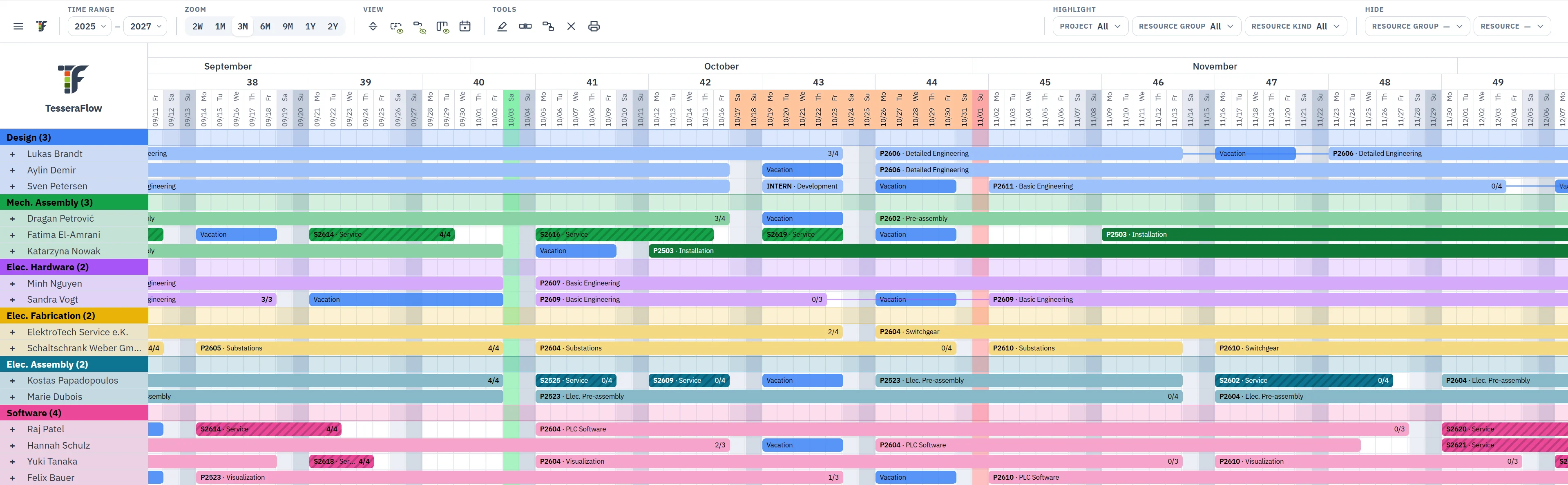 , larger view
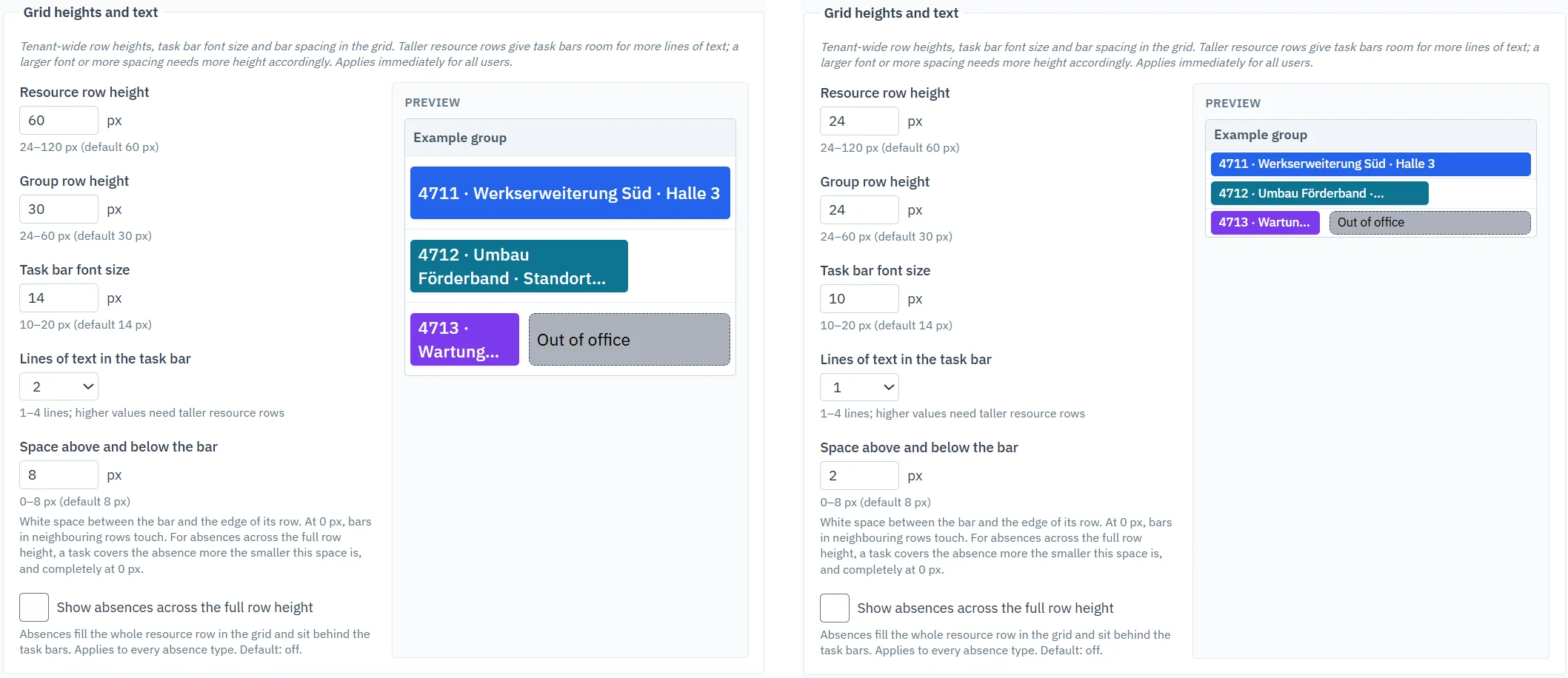 , larger view
An account for the screen on the shop floor
A display account shows the plan on a screen on the shop floor or in the workshop. It needs no resource of its own and reloads by itself every five minutes without losing the chosen view. The top of the screen shows when the plan was last loaded. A display account only sees the plan when the employee view in the settings is set to “All teams”.
You decide how far employees can see
In the settings you choose what employees see in the plan: only themselves, themselves and their own team, or all teams. For colleagues’ absences, employees see only the dates, not the reason. Employees can also hide and highlight on their own, so they find what they are looking for faster.
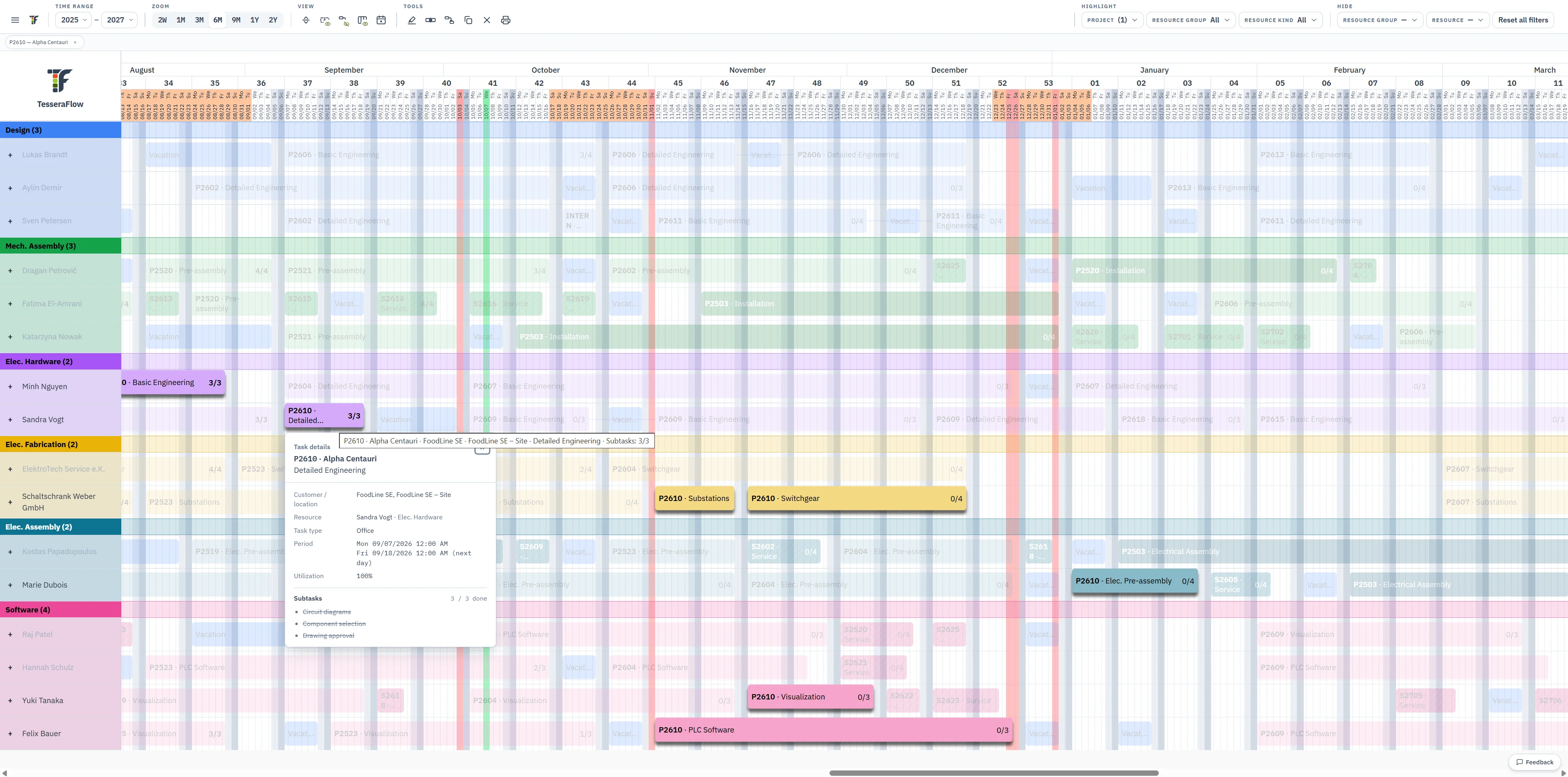 , larger view
Create faster
If the project is missing when you create a task, you create it right from the task form, with the customer if needed. New tasks are placed in a resource’s stack in order of their start date.
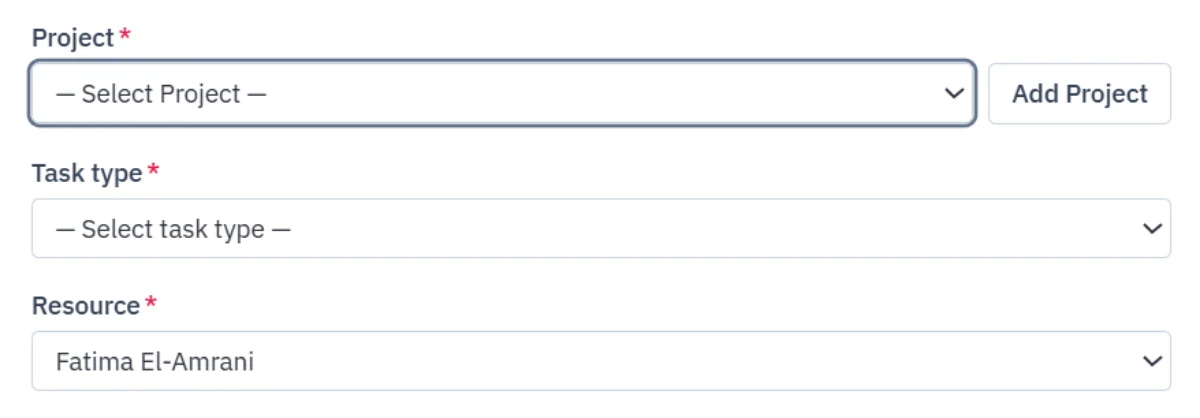 , larger view
The bar shows what matters to you
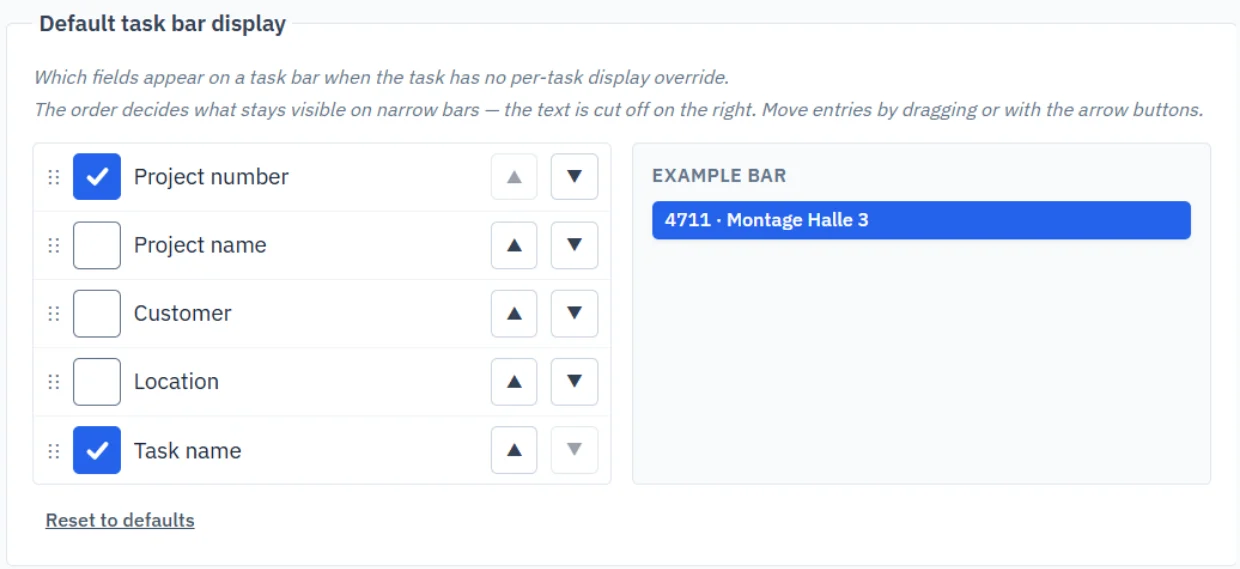
The order of the details on a bar is a setting for the whole company. The preview shows right away how it looks. Absences can be shown across the full row height if you like.
 , larger view
Order in the groups
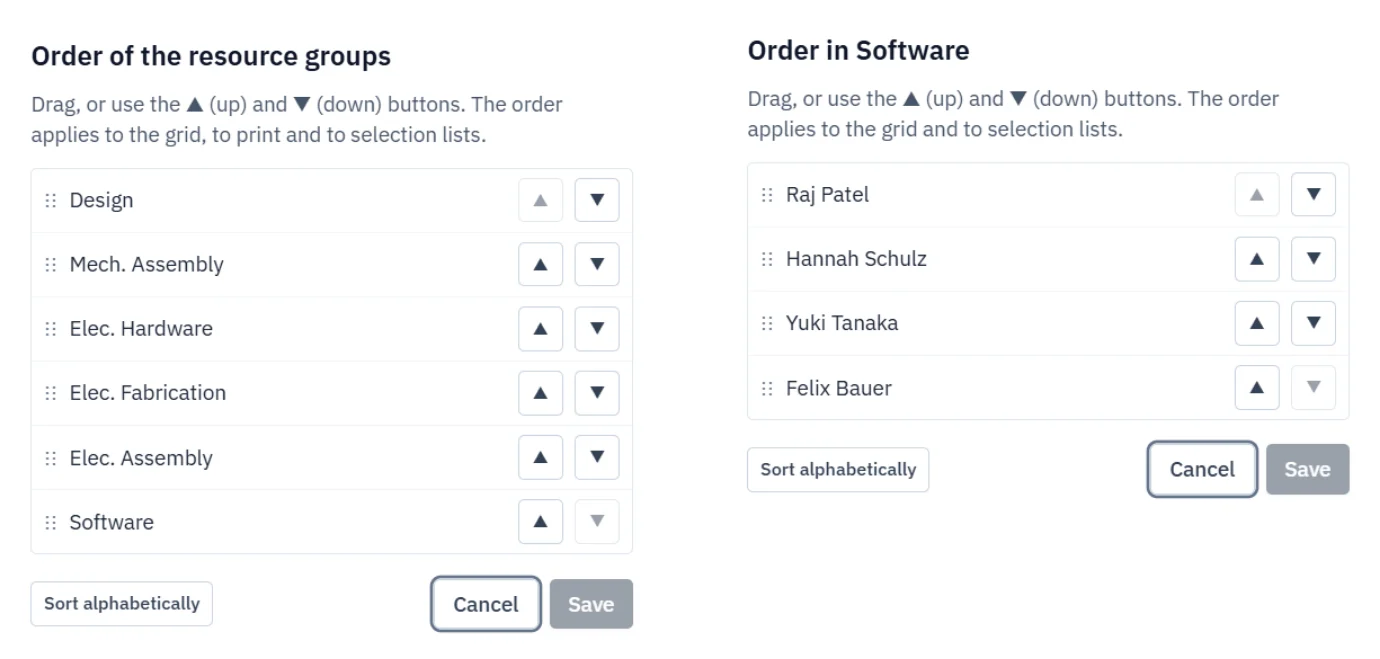
You set the order of the resource groups and of the resources within each group in the administration. The plan and the selection lists follow it.
 , larger view
Smaller improvements
- Switching to a coarser zoom level keeps the visible section.
- Filters in the plan stay after a reload.
- The absence form shows the calendar week under start and end.
- Archived projects no longer appear when you create a task.
- Error messages say more precisely what is wrong, for example with a duplicate project number.
Questions or suggestions? Write to us with the feedback button in the application or at support@tesseraflow.de. If you would like to try TesseraFlow, request a trial.